TeamMate
From VoIP.ms Wiki
| [checked revision] | [checked revision] |
Joseanmont (Talk | contribs) (→TeamMate configuration) |
Joseanmont (Talk | contribs) |
||
| Line 345: | Line 345: | ||
:::: Continue to wait until the green popup and the email confirmation. | :::: Continue to wait until the green popup and the email confirmation. | ||
::: 4) [[File:006_GlobalAdmin_DirectRouting_ChooseGateway4.png|border|500px]] | ::: 4) [[File:006_GlobalAdmin_DirectRouting_ChooseGateway4.png|border|500px]] | ||
| + | |||
| + | :: [3] Waiting for the notification on the dashboard that lets you know set-up is complete. | ||
| + | ::: ''If the process [https://connecttoteams.elevio.help/en/articles/131-direct-routing-not-completing takes longer than an hour] open a ticket with ConnecttoTeams so we can unfreeze the process, as this indicates Microsoft's servers were under heavy traffic and timed out. The global administrator will receive an email when it is complete.'' | ||
| + | |||
| + | :::: Once completed, the green popup will appear in the corner. | ||
| + | ::: 5) [[File:006_GlobalAdmin_DirectRouting_ChooseGateway5.png|border|200px]] | ||
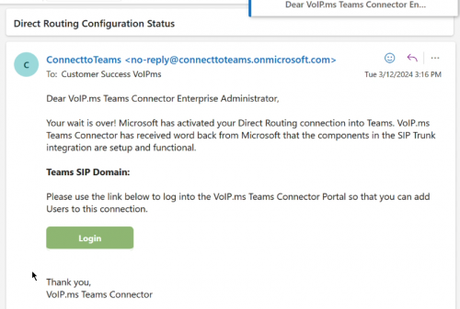
| + | :::: And an email will be received confirming the Direct Routing configuration. | ||
| + | ::: 6) [[File:006_GlobalAdmin_DirectRouting_ChooseGateway6.png|border|500px]] | ||
| + | |||
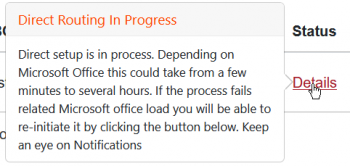
| + | :::: Note that when everything looks completed, it may still have delay. It is possible to click '''"FINISH"''' | ||
| + | ::: [[File:006_GlobalAdmin_DirectRouting_InProgress1.png|border|750px]] | ||
| + | ::: [[File:006_GlobalAdmin_DirectRouting_InProgress2.png|border|350px]] | ||
| + | |||
| + | |||
| + | |||
| + | |||
| + | |||
| + | |||
| + | |||
| + | |||
| + | |||
| + | |||
| + | |||
| + | |||
| + | |||
| + | |||
| + | |||
| + | |||
Revision as of 21:50, 20 March 2024

Microsoft Teams has a built-in softphone. The TeamMate Connector turns that softphone into a registered endpoint on any existing SIP PBX.
The Teams user experiences the native dial pad in Teams and a Teams Application with advanced PBX integration features (softkeys, portals, notifications).
Contents |

How to order a TeamMate subscription through VoIP.ms
Since we partnered with TeamMate you can get your connector subscription from us.
If you're interested in using VoIP.ms through MS Teams, simply send an email to [email protected] mentioning you want to get this service and provide the following information:
- The service you're interested in (PBX connector, SIP trunk connector, Valet App).
- The number of licenses/seat you will need (users).
- The email address associated to the Microsoft General Administrator.
Pricing
- PBX connector:
- $4.50/user/month
- Trunk connector:
- $3.50/user/month
- CallApp/Valet connector:
- $6.00/user/month
Contact us at [email protected] for bulk pricing.
Prerequisites
Consider these prerequisites before requesting your TeamMate product subscription.
Microsoft Minimal Requirements
- Microsoft licenses:
- - See the licensing section of this article.
- Number of users to set up.
- Microsoft Global Administrator
- - The initial sign-in and activation must be done by clicking on the button in the email that will be sent to the Microsoft Global Admin for the Enterprise you will connect.
- - The Microsoft Global Administrator must be the one to register the enterprise, grant permissions, and finalize changes for the end users.
- For PBX Connector
- - Proper license by User + Phone System Standard or Add-On (See licensing section).
- For Trunk Connector
- - Proper license by User + Phone System Standard or Add-On (See licensing section).
- CallApp / Valet
- - Phone resources license for each user that will use the CallApp.
VoIP.ms Technical Requirements
- For PBX Connector
- - Dialing mode of the VoIP.ms account must be set to E.164.
- - One sub-account per user with the following specs:
- Authentication: Username/Password.
- Device type: ATA device IP Phone or Softphone.
- Caller ID: A DID as the caller ID or a verified Caller ID.
- Codecs: G722.
- For Trunk Connector
- - Dialing mode of the VoIP.ms account must be set to E.164.
- - One sub-account per user with the following specs:
- Authentication: Username/Password.
- Device type: Asterisk, IP PBX, Gateway or VoIP Switch.
- Caller ID: I use a system capable of passing its own CallerID.
- Codecs: G722.
- For CallApp / Valet
- - Requires PBX or Trunk Connector..
- - If using the PBX Connector. The user must have one sub-account per user with the following specs. (Trunk connector will handle the user).:
- Authentication: Username/Password.
- Device type: ATA device IP Phone or Softphone.
- Caller ID: A DID as the caller ID or a verified Caller ID.
- Codecs: G722.
Licensing - MS Licensing for the PBX and SIP Trunk Connector
These are the licenses and combinations that allow the use of Microsoft Direct Routing. The Phone System add-on license is required per user to enable the native dial-pad in Teams.
💬 NOTE
- Note that other licenses may work: Teammate' system will dynamically evaluate license contents when an Enterprise commences Direct Routing setup and adds suitable licenses to the lists when new Microsoft licenses are encountered.
💬 NOTE
- ➜ When purchasing phone add-on licenses we recommend purchasing ones that do NOT include the Microsoft Calling Plan. ConnecttoTeams replaces the need for this additional cost. Additionally, the Calling Plan can interfere with the provisioning process and cause delays. As of June 2022 Microsoft is in the process of retiring the "Business Voice" licenses. The most appropriate replacement for this license is "Microsoft Teams Phone Standard." Microsoft's documentation is aggressively promoting the (more expensive) license with Calling Plan. Do not accept the upselling attempts.

💬 NOTE
- ➜ Additionally, as Microsoft retires the older Business Voice and Phone System licenses existing customers will be forced to migrate to the newer ones.
After the licenses are updated this may disable calling for the user. If this occurs the solution is for the global administrator to disable and re-enable each user in the ConnecttoTeams Portal. Allow propagation time between the disable and the re-enable.

Inclusive Licenses (User license + Phone System add-on)
| product_name | sku | guid |
|---|---|---|
| Microsoft Teams Shared Devices (previously "Common Area Phone") | MCOCAP | 295a8eb0-f78d-45c7-8b5b-1eed5ed02dff |
| M365 G5 Gcc | M365_G5_GCC | e2be619b-b125-455f-8660-fb503e431a5d |
| Meeting Room GOV | MEETING_ROOM_GOV | 9571e9ac-2741-4b63-95fd-a79696f0d0ac |
| Microsoft 365 A5 for faculty | M365EDU_A5_FACULTY | e97c048c-37a4-45fb-ab50-922fbf07a370 |
| Microsoft 365 A5 for students | M365EDU_A5_STUDENT | 46c119d4-0379-4a9d-85e4-97c66d3f909e |
| Microsoft 365 E5 | SPE_E5 | 06ebc4ee-1bb5-47dd-8120-11324bc54e06 |
| Microsoft 365 E5 without Audio Conferencing | SPE_E5_NOPSTNCONF | cd2925a3-5076-4233-8931-638a8c94f773 |
| Microsoft 365 GOV G5 | M365_G5_GOV | b0f809d5-a662-4391-a5aa-136e9c565b9d |
| Office 365 A5 for faculty | ENTERPRISEPREMIUM_FACULTY | a4585165-0533-458a-97e3-c400570268c4 |
| Office 365 A5 for students | ENTERPRISEPREMIUM_STUDENT | ee656612-49fa-43e5-b67e-cb1fdf7699df |
| OFFICE 365 ENTERPRISE DEVELOPER E5 | DEVELOPERPACK_E5 | c42b9cae-ea4f-4ab7-9717-81576235ccac |
| OFFICE 365 ENTERPRISE E5 | ENTERPRISEPREMIUM | c7df2760-2c81-4ef7-b578-5b5392b571df |
| OFFICE 365 ENTERPRISE E5 WITHOUT AUDIO CONFERENCING | ENTERPRISEPREMIUM_NOPSTNCONF | 26d45bd9-adf1-46cd-a9e1-51e9a5524128 |
| OFFICE 365 GCC G5 | ENTERPRISEPREMIUM_GOV | 8900a2c0-edba-4079-bdf3-b276e293b6a8 |
Non-Inclusive Licenses (User license only.) Requires Phone System add-on.
| product_name | sku | guid |
|---|---|---|
| Enterprisepackplus Student | ENTERPRISEPACKPLUS_STUDENT | 98b6e773-24d4-4c0d-a968-6e787a1f8204 |
| Enterprisewithscal Student | ENTERPRISEWITHSCAL_STUDENT | 05e8cabf-68b5-480f-a930-2143d472d959 |
| M365 F1 COMM | M365_F1_COMM | 50f60901-3181-4b75-8a2c-4c8e4c1d5a72 |
| M365edu A3 Stuusebnft | M365EDU_A3_STUUSEBNFT | 18250162-5d87-4436-a834-d795c15c80f3 |
| M365edu A5 Stuusebnft | M365EDU_A5_STUUSEBNFT | 31d57bc7-3a05-4867-ab53-97a17835a411 |
| Microsoft 365 A3 for faculty | M365EDU_A3_FACULTY | 4b590615-0888-425a-a965-b3bf7789848d |
| Microsoft 365 A3 for students | M365EDU_A3_STUDENT | 7cfd9a2b-e110-4c39-bf20-c6a3f36a3121 |
| Microsoft 365 BUSINESS | SPB | cbdc14ab-d96c-4c30-b9f4-6ada7cdc1d46 |
| Microsoft 365 E3 | SPE_E3 | 05e9a617-0261-4cee-bb44-138d3ef5d965 |
| Microsoft 365 F1 | M365_F1 | 44575883-256e-4a79-9da4-ebe9acabe2b2 |
| Microsoft 365 F3 | SPE_F1 | 66b55226-6b4f-492c-910c-a3b7a3c9d993 |
| Microsoft 365 GOV G3 | M365_G3_GOV | e823ca47-49c4-46b3-b38d-ca11d5abe3d2 |
| MICROSOFT TEAMS EXPLORATORY | TEAMS_EXPLORATORY | 710779e8-3d4a-4c88-adb9-386c958d1fdf |
| Mtr Prem | MTR_PREM | 4fb214cb-a430-4a91-9c91-4976763aa78f |
| Office 365 A1 for faculty | STANDARDWOFFPACK_FACULTY | 94763226-9b3c-4e75-a931-5c89701abe66 |
| Office 365 A3 for faculty | ENTERPRISEPACKPLUS_FACULTY | e578b273-6db4-4691-bba0-8d691f4da603 |
| Office 365 BUSINESS ESSENTIALS | O365_BUSINESS_ESSENTIALS | 3b555118-da6a-4418-894f-7df1e2096870 |
| Office 365 BUSINESS PREMIUM | O365_BUSINESS_PREMIUM | f245ecc8-75af-4f8e-b61f-27d8114de5f3 |
| Office 365 ENTERPRISE E1 | STANDARDPACK | 18181a46-0d4e-45cd-891e-60aabd171b4e |
| Office 365 ENTERPRISE E2 | STANDARDWOFFPACK | 6634e0ce-1a9f-428c-a498-f84ec7b8aa2e |
| Office 365 ENTERPRISE E3 | ENTERPRISEPACK | 6fd2c87f-b296-42f0-b197-1e91e994b900 |
| Office 365 ENTERPRISE E3 DEVELOPER | DEVELOPERPACK | 189a915c-fe4f-4ffa-bde4-85b9628d07a0 |
| Office 365 ENTERPRISE E4 | ENTERPRISEWITHSCAL | 1392051d-0cb9-4b7a-88d5-621fee5e8711 |
| Office 365 F1 | DESKLESSPACK | 4b585984-651b-448a-9e53-3b10f069cf7f |
| Office 365 GCC G3 | ENTERPRISEPACK_GOV | 535a3a29-c5f0-42fe-8215-d3b9e1f38c4a |
| Office 365 SMALL BUSINESS ESSENTIALS | SMB_BUSINESS_ESSENTIALS | dab7782a-93b1-4074-8bb1-0e61318bea0b |
| Office 365 SMALL BUSINESS PREMIUM | SMB_BUSINESS_PREMIUM | ac5cef5d-921b-4f97-9ef3-c99076e5470f |
| Spe E3 Rpa1 | SPE_E3_RPA1 | c2ac2ee4-9bb1-47e4-8541-d689c7e83371 |
| Standardpack Gov | STANDARDPACK_GOV | 3f4babde-90ec-47c6-995d-d223749065d1 |
| Standardwoffpack Iw Faculty | STANDARDWOFFPACK_IW_FACULTY | 78e66a63-337a-4a9a-8959-41c6654dfb56 |
| Standardwoffpack Iw Student | STANDARDWOFFPACK_IW_STUDENT | e82ae690-a2d5-4d76-8d30-7c6e01e6022e |
| Standardwoffpack Student | STANDARDWOFFPACK_STUDENT | 314c4481-f395-4525-be8b-2ec4bb1e9d91 |
Phone System or comparable add-on Licenses
| product_name | sku | guid |
|---|---|---|
| Mcocap Faculty | MCOCAP_FACULTY | 420c7602-7f70-4895-9394-d3d679ea36fb |
| Mcocap Gov | MCOCAP_GOV | b1511558-69bd-4e1b-8270-59ca96dba0f3 |
| Meeting Room | MEETING_ROOM | 6070a4c8-34c6-4937-8dfb-39bbc6397a60 |
| Meeting Room Faculty | MEETING_ROOM_FACULTY | 132b5ce3-eb0b-4d49-91fa-2932ffe4971c |
| Meeting Room Noaudioconf | MEETING_ROOM_NOAUDIOCONF | 61bec411-e46a-4dab-8f46-8b58ec845ffe |
| MICROSOFT 365 PHONE SYSTEM FOR GCC | MCOEV_GOV | a460366a-ade7-4791-b581-9fbff1bdaa85 |
| MICROSOFT 365 PHONE SYSTEM FOR STUDENTS | MCOEV_STUDENT | 1f338bbc-767e-4a1e-a2d4-b73207cc5b93 |
| MICROSOFT 365 PHONE SYSTEM FOR TELSTRA | MCOEV_TELSTRA | ffaf2d68-1c95-4eb3-9ddd-59b81fba0f61 |
| MICROSOFT 365 PHONE SYSTEM_USGOV_DOD | MCOEV_USGOV_DOD | b0e7de67-e503-4934-b729-53d595ba5cd1 |
| MICROSOFT 365 PHONE SYSTEM_USGOV_GCCHIGH | MCOEV_USGOV_GCCHIGH | 985fcb26-7b94-475b-b512-89356697be71 |
| Microsoft Business Voice | BUSINESS_VOICE | e5a17adf-8f0d-4b57-bc14-d331235f9307 |
| Microsoft Business Voice Medium Telco | BUSINESS_VOICE_MED2_TELCO | 08d7bce8-6e16-490e-89db-1d508e5e9609 |
| Microsoft Business Voice Medium Without Calling Plan | BUSINESS_VOICE_DIRECTROUTING_MED | 8330dae3-d349-44f7-9cad-1b23c64baabe |
| Microsoft Business Voice Medium2 | BUSINESS_VOICE_MED2 | a6051f20-9cbc-47d2-930d-419183bf6cf1 |
| Microsoft Business Voice Without Calling Plan | BUSINESS_VOICE_DIRECTROUTING | d52db95a-5ecb-46b6-beb0-190ab5cda4a8 |
| Microsoft Phone System for faculty | MCOEV_FACULTY | d979703c-028d-4de5-acbf-7955566b69b9 |
| Mtr Prem Us Can | MTR_PREM_US_CAN | 03070f91-cc77-4c2e-b269-4a214b3698ab |
| PHONE SYSTEM Teams Phone Standard | MCOEV | e43b5b99-8dfb-405f-9987-dc307f34bcbd |
| Teams Phone with Calling Plan | MCOTEAMS_ESSENTIALS * This includes the Domestic Calling Plan. Ensure that this is removed from the Microsoft Admin Center to prevent provisioning delays. | ae2343d1-0999-43f6-ae18-d816516f6e78 |
TeamMate configuration
Please follow the instructions that you will find in this section to set up the TeamMate product you subscribed for.
Please note this process requires the complete involvement of the Microsoft Global Administrator. Some tasks can be delegated from the global admin to the “Microsoft Teams Service Admin” & “Skype Admin,” but due to Microsoft's security policies there is no way to complete setup without the Global Administrator initial involvement.
PBX Connector Installation
-
[1] Assign MS licenses to each planned user of ConnecttoTeams.
- Before beginning with ConnecttoTeams, each planned MS Teams User must have the correct licenses assigned to them.
- Sometimes due to high traffic Microsoft can take up to 24 hours to activate licenses after they have been assigned, so doing this ahead of time will make the rest of the process much more streamlined.
- Also, ensure there is one additional set of licenses available and unassigned.
- Don’t worry, you can recover these extra licenses once the setup is done.
- If there is a canceled/suspended trial license and a valid license is added with the same name - you should make sure that the canceled trial subscription is removed from the license listing. If not, Microsoft only returns the canceled/suspended SKU and the software will erroneously claim that the proper licenses are not available.
-
[2] Grant permissions.
- Once your TeamMate subscription is active, you will receive an email to start the configuration process.
- The global administrator must click the link provided in the email they receive,
-

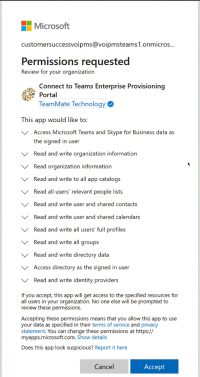
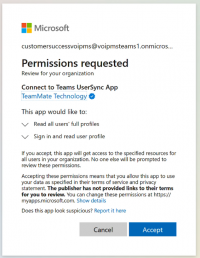
- Then log into the Enterprise portal with your Global Administrator credentials, and authorize the requested permissions.
- There are two permission screens that are mandatory and will need to be granted before the enterprise can log into the connector.
- 1)
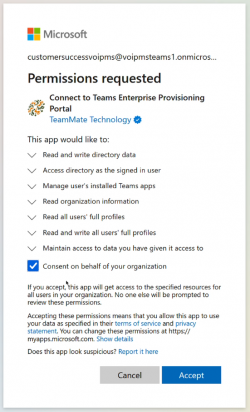 2)
2) 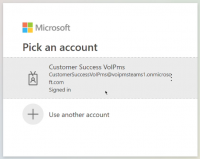 3)
3) 
- 4) 5)
- 1)


- Once logged in there are prompts to sync a group of users then on the dashboard to grant optional additional permissions that enhance ConnecttoTeams call troubleshooting and presence syncing.
- 1)

- 2)

- Must do this for each.
- 3)

- 4)

- 1)


-
[3] Confirm Microsoft licensing.
- Upon logging in, the Global Administrator should use the sidebar menu to navigate to Direct Routing Management >> Direct Routing.
- Confirm there is one available Microsoft license free to be assigned.
- 1)

- What if the portal says there are negative licenses available?
- What if the portal says I don’t have any available licenses when I know that I do?
- 1)

-
[4] Configure Direct Routing.
- [1] Click on the “Direct Routing” tab.
- [2] Select the desired Gateway then Click “Complete Direct Routing,” ensure the verification process succeeds, and then click "Complete."
- 1)

- 2)

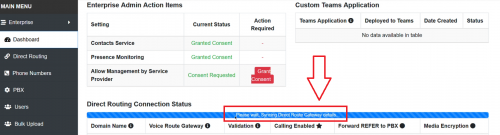
- Wait until the process is done.
- 3)
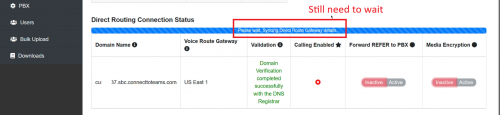
- Continue to wait until the green popup and the email confirmation.
- 4)
- 1)


- [3] Waiting for the notification on the dashboard that lets you know set-up is complete.
- If the process takes longer than an hour open a ticket with ConnecttoTeams so we can unfreeze the process, as this indicates Microsoft's servers were under heavy traffic and timed out. The global administrator will receive an email when it is complete.
- [3] Waiting for the notification on the dashboard that lets you know set-up is complete.
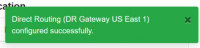
- Once completed, the green popup will appear in the corner.
- 5)
- And an email will be received confirming the Direct Routing configuration.
- 6)


- Note that when everything looks completed, it may still have delay. It is possible to click "FINISH"
-

-