CSipSimple
From VoIP.ms Wiki
| [quality revision] | [draft revision] |
(CSIP Simple guide updated 2016 [Joseph]) |
(app is no longer in appstores) |
||
| (2 intermediate revisions not shown) | |||
| Line 1: | Line 1: | ||
| - | '''CSipSimple''' | + | '''CSipSimple''' was a free [[softphone]] for [[smartphones|Android]] devices. This softphone app has '''not been updated''' since '''November 30, 2014''' and is no longer in the app stores ([https://play.google.com/store/apps/details?id=com.csipsimple CSipSimple]). |
| + | |||
| + | While it may still be working on some supported platforms (typically ARM32 processors), we cannot offer any guarantee about its compatibility or stability. | ||
==Configuration== | ==Configuration== | ||
| Line 40: | Line 42: | ||
=== Forbidden 403 === | === Forbidden 403 === | ||
| - | When you see this message and your account is marked in red, it is usually because either your '''Username''' or '''password''' are wrong. Access to your account's section, select it to edit and change/correct the '''Username''' and/or '''password''', then save and check again. | + | When you see this message and your account is marked in red, it is usually because either your [[CSipSimple#Account_creation|'''Username''']] or [[CSipSimple#Account_creation|'''password''']] are wrong. Access to your account's section, select it to edit and change/correct the [[CSipSimple#Account_creation|'''Username''']] and/or [[CSipSimple#Account_creation|'''password''']], then save and check again. |
<div><ul> | <div><ul> | ||
| Line 76: | Line 78: | ||
</ul></div> | </ul></div> | ||
<br clear="all" /> | <br clear="all" /> | ||
| + | |||
| + | [[Category:Softphones]] | ||
Latest revision as of 23:17, 21 August 2023
CSipSimple was a free softphone for Android devices. This softphone app has not been updated since November 30, 2014 and is no longer in the app stores (CSipSimple).
While it may still be working on some supported platforms (typically ARM32 processors), we cannot offer any guarantee about its compatibility or stability.
Contents |
Configuration
First Run - Easy Configuration
Once installed CSIP Simple from the playstore, the first view will be the "Easy configuration" Menu, there you can select:
Integrate witn Android (optional but recommended)
Always Available
"I'm allowed to use mobile"

Account creation
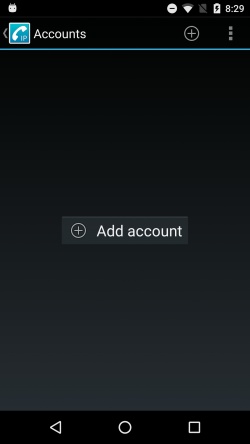
- After the "Easy configuration" menu, you will see a "View" with an "Add account" button, click it
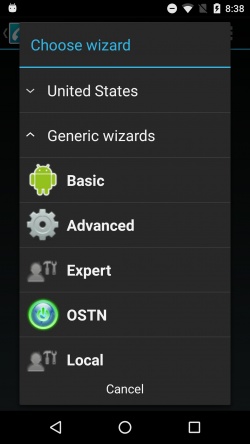
- At "Chose Wizard" select Advanced
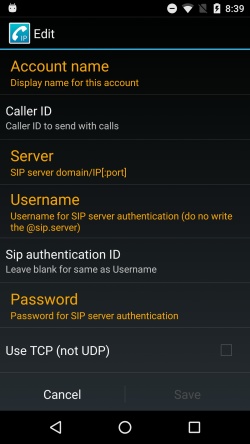
- Fill in the fields with your SIP account's information (mandatory one is marked in yellow)
- Account name: Choose a name for your account.
- CallerID: Set the callerID name
- Server: montreal5.voip.ms (one of our multiple servers)
- Username: 100000 (your VoIP.ms main or sub account)
- Password: ********* (account password)
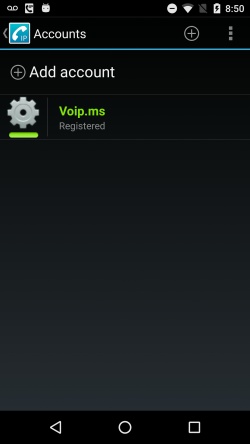
- Select "Save" and if all the information was properly set, you will see the account marked on Green, with status "registered".
-
 Click to enlarge
-
 Click to enlarge
 -
 Click to enlarge
 -
 Click to enlarge
 -
 Click to enlarge


Issues and solutions
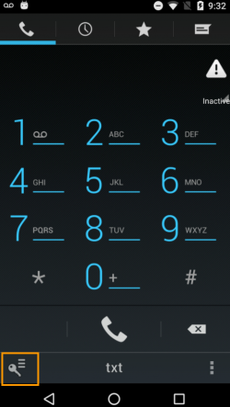
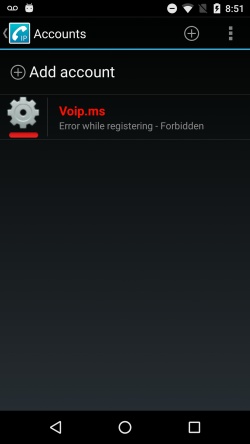
Forbidden 403
When you see this message and your account is marked in red, it is usually because either your Username or password are wrong. Access to your account's section, select it to edit and change/correct the Username and/or password, then save and check again.
-
 Click to enlarge
 -
 Click to enlarge
 - Click to enlarge


Network not allowing incoming/outgoing calls
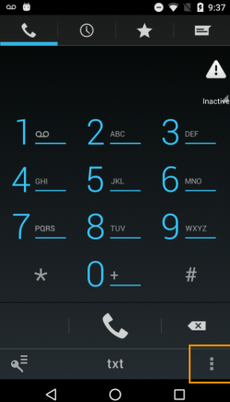
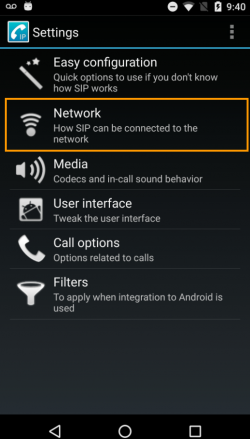
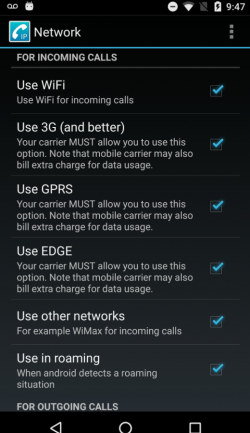
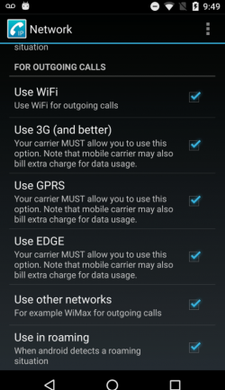
In some cases, when during "#First Run - Easy Configuration " are not selected the proper options, errors could occur during incoming and/or outgoing calls. If this is the case, you can check at:
Main Dial Path -> Configuration -> Settings -> Network -> Mark all for incoming and outgoing calls.
-
 Click to enlarge
 -
 Click to enlarge
 -
 Click to enlarge
 -
 Click to enlarge


Audio Issues
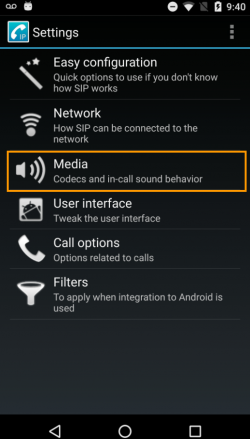
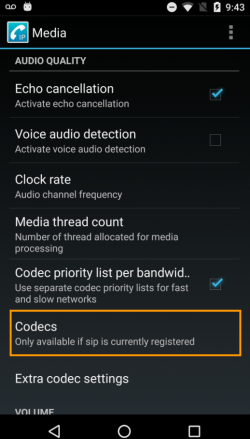
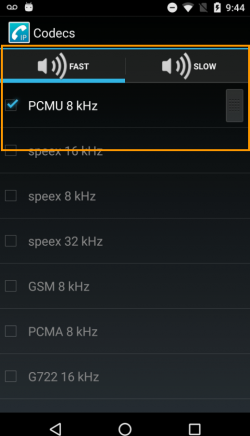
Some audio issues are related with network speed, firewalls and usage, other are related with wrong audio codec selected. By default, CSIP Simple have selected codecs that we do not allow, please correct that in your settings:
Main Dial Path -> Configuration -> Settings -> Media -> Codecs -> Leave enabled only PCMU or GSM depending on your SIP account's settings.
- Click to enlarge
-
 Click to enlarge
 -
 Click to enlarge
 -
 Click to enlarge


