Media5 Corporation Audiotrix C2
From VoIP.ms Wiki

The Audiotrix C2 serves as a VoIP Analog Adaptor facilitating the integration of analog telephones, faxes, and modems into SIP-based systems. This ATA streamlines deployment processes, offering operators the ability to swiftly set up highly secure environments. It enables the seamless incorporation of cloud telephony services into branch offices and small to medium-sized businesses (SMBs).
Contents |
LED and Interface
LED description
| LED | Behavior | Condition |
|---|---|---|
| PHONE1/PHONE2 | Blinking (Green) | Using |
| On (Green) | Registered | |
| Off | Not registered | |
| WAN | On (Green) | The port is connected with 100Mbps. |
| Off | The port is disconnected. | |
| Blinking (Green) | It will blink while transmitting data. | |
| LAN 1/2 | On (Green) | The port is connected with 100Mbps. |
| Off | The port is disconnected. | |
| Blinking (Green) | It will blink while transmitting data. | |
| POWER | On (Green) | The ATA is powered on and running normally |
| Off | The ATA is powered off. |
Interface Description
| Interface | Description |
|---|---|
| PHONE1/PHONE2 | Analog phone connector |
| WAN | Connector for accessing the Internet |
| LAN 1/2 | To restore the factory settings, press and hold the device's "Restore" button for 5 seconds. |
| RESET | the factory settings Connector for a power adapter |
Access the Audiotrix C2 Web Interface
1. In your web browser’s address field, type the IP address of the Audiotrix C2:
The Audiotrix C2 offers two management levels: administrator and user:
- [1] Administrator mode grants access to browse and adjust all configuration parameters.
- [2] User mode allows configuration adjustments for all parameters except SIP credentials and advanced settings.
- The Login page opens:
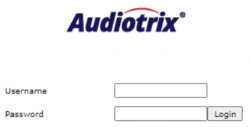
- The Login page opens:

WAN Port Login
- 1. Ensure your computer is properly connected to the ATA's LAN port.
- Note: You can either configure your computer to obtain an IP dynamically from the ATA or manually set the IP address to the 192.168.1.1/24 subnet. The LAN default IP address is 192.168.1.1.
- 2. Open your Web browser and enter the following URL: http://192.168.1.1
- 3. Use the following login credentials:
- User: admin
- Password: administrator
- 4. The web interface will disconnect after 5 minutes of inactivity.
WAN Port Login
- 1. If your network has a DHCP server, connect the primary WAN port of the unit to the network and use the provided DHCP server IP address.
v2. In your Web browser, enter the IP address at which the Web interface can be reached:
- http://<IP address of WAN port>
- 3. Use the following login credentials:
- User: admin
- Password: administrator
- 4. The web interface will disconnect after 5 minutes of inactivity.
Configure VoIP.ms POP
1. Go to SIP tab 2. Then click on "Servers" sub-menu 3. On "Default Servers" section.
- 1. "Registrar host": Enter the VoIP.ms POP server you want to use.
- 2. "Proxy host": Re-enter the VoIP.ms POP server you have entered on Registrar host.
4. On "Keep Alive" section.
- 1. Keep Alive Method: Select "OPTION"
5. Click [Apply]
Restart the services
- After setting the VoIP.ms POP in the SIP --> Servers sub-menu a services restart is required in order to correctly apply the new parameters:
- Click on the "restart required services" link at the top of the page
Enabling the telephony ports registration
- 1. Go to SIP
- 2. Go to Registrations sub-menu
- 3. For each analog port to register:
- 4. Username column, enter the associated VoIP.ms account/sub-account username, example: ######_SubAccount
- 5. "Friendly Name" column: Enter the outbound callerID Name. See the information below
Friendly Name - IMPORTANT
- Entering outbound Caller ID Name, it must be in CAPITAL LETTERS. This will appears more clearly/visible on some devices.
- You must NOT use any special characters. They will not be displayed and it prevents potential outbound call issues.
- Do NOT exceed 15 characters. Traditional canadian providers will not show more than 15 characters. We suggest shrinking or adapt the name.
- Spaces are allowed in a caller ID name but count as a characters. (do not exceed 15 chars. in total).
- 6. Register column, select Enable from the drop-down list
- 7. Click [Apply]
