Poly Edge E400
From VoIP.ms Wiki
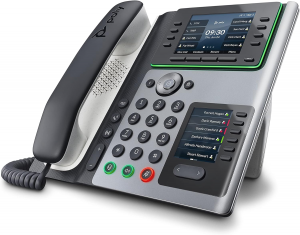
- The Poly Edge E400 is a SIP desk phone from Poly (HP) that can be configured to work with the VoIP.ms service.
- This guide provides step-by-step instructions to register the phone, configure SIP accounts, set codecs, and apply VoIP.ms feature codes.
- Note that this wiki configuration is applicable for the Poly Edge E Series.
- URL: https://www.hp.com/us-en/poly/phones/desk-phones/edge-e-series.html
Contents |
Pre-Requisites
- Active VoIP.ms account
- One SIP Sub Account created (username, password, server/PoP)
- Poly Edge E400 connected to the Internet
- IP address of the phone (retrieved from the phone’s menu)
Accessing the Web Interface
- Connect the E400 to your network.
- On the phone, go to: Menu → Status → Network → TCP/IP Parameters.
- Note the IP address (example:
192.168.1.45). - Open a browser and go to:
http://IP_ADDRESS/. - Default login credentials:
- Username:
admin - Password:
admin(unless changed)

SIP Account Configuration
Line Settings
- Navigate to: Settings → Lines → Line 1 and fill as follows:

Identification
Field Value Note Display Name YOUR OUTBOUND CALLERID NAME (for call to canada) ATTENTION:
- Capital letters only,
- 15 characters Max,
- NO special characters,
- Spaces Allowed and count as a character
Address YourPreferredPoP.voip.ms Note that to receive incoming calls, the POP Server must match the one you've set on your DID and vice-versa
(SIP User ID) ######_SubAccount Username This is the SIP Username you wish to connect to the phone Label Text shown on phone line key Enable SRTP No For call encryption set Yes
- NOTE: For Call encryption, you must enable this option in your sub account settings.
Require SRTP No For call encryption set Yes
- NOTE: For Call encryption, you must enable this option in your sub account settings.

Authentication
Field Value Note User ID ######_SubAccountEnter your Sub Account SIP Username Password Your SIP password Enter the password of your Sub account.

Server 1
Field Value Note Address Example: montreal1.voip.msOr one of VoIP.ms multiple servers Port 5060 For call encryption set 5061.
- NOTE: For Call encryption, you must enable this option in your sub account settings.
Transport UDP (or TCP if set in sub-account) For call encryption set TCP
- NOTE: For Call encryption, you must enable this option in your sub account settings.
Expires 120 Subscription Expire(s) 120

Message Center
Field Value Note Callback Mode Contact Callback Contact *97
- After saving, click Save.
- Go to Utilities → Restart Phone and confirm.
- Once rebooted, the phone should show Registered.
Codecs Configuration
- Navigate to: Settings → Audio Codec Priority and fill as follows using the arrows ◀️▶️ to move the selected codec to the other box:
- In the box "In use" keep:
- G722 (16 Kbps) - (For HD Calls, but needs to be enabled in your Sub Account
- G.711Mu (PCMU)
Feature Codes
You can use VoIP.ms star codes directly on the Poly Edge E400:
- Voicemail Access: *97
- Other Mailbox: *98
You may assign the voicemail hard key to dial *97 automatically.
Additional Settings
NAT & Keep Alive
- In your VoIP.ms sub-account: set NAT = Yes if the phone is behind a router.
- On the phone: enable SIP Keep Alive (30 seconds recommended).
E911 (US/Canada only)
- Must be enabled on at least one DID.
- Outbound Caller ID must match the DID registered with E911.
- Test Caller ID by dialing: 1-555-555-0911.
- Important: Emergency service may fail during Internet/power outages.
Troubleshooting
- Not Registering → Verify username, password, server, and port.
- One-way Audio → Enable NAT and confirm RTP ports (10000–20000) are open.
- Frequent Drops → Use TCP transport or reduce Registration Expire to 300.
- Poor Audio Quality → Prioritize G.711u and check network QoS.
Screenshots
Poly E400 Login.png
Login screen of the Poly Edge E400 |
Poly E400 Line1.png
Line 1 configuration for VoIP.ms |
Poly E400 Codecs.png
Codec configuration |
