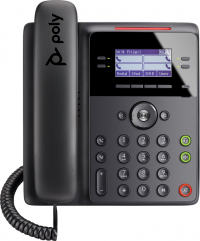
Poly Edge B10
From VoIP.ms Wiki
| [checked revision] | [checked revision] |
(Created page with "Poly Edge B10 == Manual Configuration Details == In order to start the c...") |
|||
| Line 2: | Line 2: | ||
| - | + | = Manual Configuration Details = | |
In order to start the configuration, you will need to retrieve his current IP address. | In order to start the configuration, you will need to retrieve his current IP address. | ||
| Line 29: | Line 29: | ||
Now on the left side of the screen please find the next options and follow the next steps: | Now on the left side of the screen please find the next options and follow the next steps: | ||
| - | + | == Disabling auto-provisioning == | |
'''**NOTE :''' In order to make sure there will be no conflicts between this Manual configuration and the Poly Edge B10 dashboard, please perform the following steps to disable auto-provisioning: | '''**NOTE :''' In order to make sure there will be no conflicts between this Manual configuration and the Poly Edge B10 dashboard, please perform the following steps to disable auto-provisioning: | ||
| Line 47: | Line 47: | ||
After this, save all changes and you are ready to move on to the actual configuration. | After this, save all changes and you are ready to move on to the actual configuration. | ||
<br /> | <br /> | ||
| - | + | == Configuring the ITSP Profile == | |
| - | + | === General Section === | |
In this section you will set the name and the DigiMap you will use in the profile you configure. By default you will configure the profile A, unless you use the same device with another provider. | In this section you will set the name and the DigiMap you will use in the profile you configure. By default you will configure the profile A, unless you use the same device with another provider. | ||
| Line 61: | Line 61: | ||
<br clear="all" /> | <br clear="all" /> | ||
| - | + | ===SIP Section=== | |
In this section you can set the server and the port that you wish to register to. | In this section you can set the server and the port that you wish to register to. | ||
| Line 79: | Line 79: | ||
<br clear="all" /> | <br clear="all" /> | ||
| - | + | ==Configuring Voice Services== | |
<br/> | <br/> | ||
In this section you can set your Main account/sub_account credentials like User name and Password. The Main account password by default is the same password as the Customer Portal. | In this section you can set your Main account/sub_account credentials like User name and Password. The Main account password by default is the same password as the Customer Portal. | ||
| Line 95: | Line 95: | ||
Once you have finished changing all those settings, click on the button ''Submit'' to save the changes and ''reboot the device'', your device should now be registered. | Once you have finished changing all those settings, click on the button ''Submit'' to save the changes and ''reboot the device'', your device should now be registered. | ||
| - | + | ==User Settings - Speed Dials (Conflict) == | |
<br/> | <br/> | ||
The default feature code for the speed dial enter in conflict with VoIPms Phone Book Speed Dial. You will need to retrieve the line '''Code22''' and replace '''*75''' by per example '''**75''' and Save | The default feature code for the speed dial enter in conflict with VoIPms Phone Book Speed Dial. You will need to retrieve the line '''Code22''' and replace '''*75''' by per example '''**75''' and Save | ||
<br clear="all" /> | <br clear="all" /> | ||
Revision as of 19:05, 23 March 2022
Contents |
Manual Configuration Details
In order to start the configuration, you will need to retrieve his current IP address.
Once you get the IP address, enter it in the URL address bar "http://###.###.###.###" of your Internet Browser to get access to the Graphic User Interface of the Poly Edge B10.
There is two method to get the IP address.
- Using the build In IVR:
- Press the Speaker button and start by dialing * * *, then press 1 for "Basic Network status", this will return the IP address of your device being a number similar to 192.168.xxx.xxx.
- Using the option On-Screen:
- On the IP Phone keys, press the [House] button next to the right arrow. Using the arrows, scroll down to "Product Info" and press the middle button. [Checked mark]. You will see on the screen the "IP Address".
Once you get the Authentication Required window you will be prompted for a User Name and Password, the default credentials are:
User Name: admin
Password: admin
After this, you should now be able to see the Poly Edge B10 Web interface.
Now on the left side of the screen please find the next options and follow the next steps:
Disabling auto-provisioning
**NOTE : In order to make sure there will be no conflicts between this Manual configuration and the Poly Edge B10 dashboard, please perform the following steps to disable auto-provisioning:
Please note you must remove the check mark from the "default" column, to have the ability to change a setting.
- System Management -> Auto Provisioning -> Auto Firmware Update -> Method: Disabled
- System Management -> Auto Provisioning -> ITSP Provisioning -> Method: Disabled
- System Management -> Auto Provisioning -> OBiTALK Provisioning -> Method: Disabled
- Click [Submit] at the bottom of the screen.
- Voice Services -> OBiTALK Service -> Enable : Unchecked
- Click [Submit] at the bottom of the screen.

After this, save all changes and you are ready to move on to the actual configuration.
Configuring the ITSP Profile
General Section
In this section you will set the name and the DigiMap you will use in the profile you configure. By default you will configure the profile A, unless you use the same device with another provider.
- Name: Name it of your choice, could be "VoIPms" or your sub-account username ######_SubAccount
- DigitMap: Copy the line, including parenthesis, in the Digitmap field in the ITSP Profile:
- Dial Plan (recommended):
(911S0|[23458]11S0|1[2-9]xx[2-9]xxxxxxS0|[2-9]xx[2-9]xxxxxxS0|822S0|*9[78]S0|7xxs0|00xx.|011xx.|033xx.|044xx.|xx.|*75xxS0|*xx.|***xx|***xxx|4xxx|(Mipd)|[^*]@@.)

SIP Section
In this section you can set the server and the port that you wish to register to.
Please note that in order to change the settings, you need to uncheck the Default box on the right hand side.
- ProxyServer: YourPreferredPoPServer.voip.ms (one of VoIP.ms multiple servers)
- ProxyServerPort: 5060 (You can also use our alternative ports5080)
- RegistrarServer: YourPreferredPoPServer.voip.ms (one of VoIP.ms multiple servers servers)
- RegistrarServerPort: 5060 (You can also use our alternative ports 5080)

Additionally, you may want to change the RegisterExpires value to 120, scroll down, deselect the default box and set the value there from 3600 to 120.

Configuring Voice Services
In this section you can set your Main account/sub_account credentials like User name and Password. The Main account password by default is the same password as the Customer Portal.
- X_KeepAliveEnable: Enable It.
- AuthUserName: ######_SubAccountUserName (Enter your sub-account username)
- AuthPassword: ****** (Your SIP Account Password)
- X_CheckVoiceMailNumber: *97
- CallerIDName: Outbound Caller ID Name
- (ATTENTION: Capital letters only, 15 characters Max, NO special characters, Spaces Allowed and count as a character)

Once you have finished changing all those settings, click on the button Submit to save the changes and reboot the device, your device should now be registered.
User Settings - Speed Dials (Conflict)
The default feature code for the speed dial enter in conflict with VoIPms Phone Book Speed Dial. You will need to retrieve the line Code22 and replace *75 by per example **75 and Save


