DID Troubleshooting
From VoIP.ms Wiki
| [checked revision] | [quality revision] |
(→How to test your DID with Echo test) |
|||
| (5 intermediate revisions not shown) | |||
| Line 1: | Line 1: | ||
| + | {| class="wikitable" | ||
| + | |+ | ||
| + | |- | ||
| + | ! Article en Français !! Artículo en Español | ||
| + | |- | ||
| + | | [https://wiki.voip.ms/article/Solutions_de_probl%C3%A8mes_d%27un_DID Français] || | ||
| + | [https://wiki.voip.ms/article/Soluci%C3%B3n_de_problemas_de_un_DID Español] | ||
| + | |} | ||
| + | |||
| + | |||
"When I call my DID number, it is not reaching the destination I expect"... This is a common situation when talking about VoIP services. The proper way to test your DID Number with [http://voip.ms/ VoIP.ms] is using the echo test application in the customer portal. With this feature you can verify if your number is working properly. | "When I call my DID number, it is not reaching the destination I expect"... This is a common situation when talking about VoIP services. The proper way to test your DID Number with [http://voip.ms/ VoIP.ms] is using the echo test application in the customer portal. With this feature you can verify if your number is working properly. | ||
| Line 15: | Line 25: | ||
Once your number is routed to the echo test mode, make a call from an external number, preferably a landline. If the number is working properly, you will reach the echo test. After the recording, you can talk and the system will repeat everything you say. This verifies the quality of your line. If this test is successful, we can rule out any issues associated with the DID number itself. If you are unable to reach the DID while it is routed to echo test then please let the support staff know via ticket. | Once your number is routed to the echo test mode, make a call from an external number, preferably a landline. If the number is working properly, you will reach the echo test. After the recording, you can talk and the system will repeat everything you say. This verifies the quality of your line. If this test is successful, we can rule out any issues associated with the DID number itself. If you are unable to reach the DID while it is routed to echo test then please let the support staff know via ticket. | ||
| - | Note: If possible, try to repeat this test from at least 2-3 different | + | Note: If possible, try to repeat this test from at least 2-3 different times to rule out any issues with the calling party. |
| + | |||
== Trouble shooting == | == Trouble shooting == | ||
| Line 68: | Line 79: | ||
*Routing if Destination No Answer: Self explanatory, if the main destination does not answer the call (Time out expired) this option will trigger. [[File:Did6.jpg]] | *Routing if Destination No Answer: Self explanatory, if the main destination does not answer the call (Time out expired) this option will trigger. [[File:Did6.jpg]] | ||
| + | |||
| + | |||
| + | ==If issues are persisting== | ||
| + | Lastly, you can verify and sign up to receive notification if VoIP.ms service is currently being affected by an outage at [https://status.voip.ms/ https://status.voip.ms/] | ||
[[category:guides]] | [[category:guides]] | ||
Latest revision as of 17:08, 8 August 2023
| Article en Français | Artículo en Español |
|---|---|
| Français |
"When I call my DID number, it is not reaching the destination I expect"... This is a common situation when talking about VoIP services. The proper way to test your DID Number with VoIP.ms is using the echo test application in the customer portal. With this feature you can verify if your number is working properly.
Contents |
How to test your DID with Sound Quality Test
You can use this tool and follow these steps:
- Go to DID Numbers >> Manage DID(s), once you get there you will see listed your DID number.
- On the left side of your number's description, you will find 2 links, the first one is to edit the DID. Click on it.
- From the routing options, select System >> Sound Quality Test, go to the bottom of the page and then click on apply changes.

Once your number is routed to the echo test mode, make a call from an external number, preferably a landline. If the number is working properly, you will reach the echo test. After the recording, you can talk and the system will repeat everything you say. This verifies the quality of your line. If this test is successful, we can rule out any issues associated with the DID number itself. If you are unable to reach the DID while it is routed to echo test then please let the support staff know via ticket.
Note: If possible, try to repeat this test from at least 2-3 different times to rule out any issues with the calling party.
Trouble shooting
If you are able to reach the echo test recording while DID is in echo test, then the next possible reason for the unsuccessful calls could be something in your local network, VoIP.ms settings in your customer portal, or the device configuration can be affecting the function of our number. There are some important points we need to check for this.
VoIP.ms portal
- Check if your device is registered. Refer to Main Menu >> Portal Home, go to the Registration Status panel, to confirm if your device appears as registered in our Portal (This panel is only for SIP registrations).

- Verify if the POP (point of presence) that is configured for the DID, is matching the same server used by your device. Example: If your main account is registered in the Houston server, your POP needs to be there as well.

- If you are using the main account, go to Main menu >> Account Settings >> Inbound Settings, confirm the device type and protocol are set properly, depending on your device.

- When using a sub account, go to Sub Account >> Manage Sub Accounts, enter to edit the settings on the sub account in use, and select the correct device type.

Note: In both cases, make sure the setting NAT is set to Yes, this applies for the Main and Sub Account settings.
Device configuration
Sometime ATA devices lose registration after some time, usually because the local network closes the connection. Most devices have settings to prevent this.
- Using an ATA device or a softphone, check if it has any options similar to "Nat keep alive" or "Nat mapping", set these options to YES or Enable, to prevent the connection to go idle.
- Using a PBX or Asterisk system, is recommended to add qualify=yes and nat=yes in your configuration trunk.
Network configuration
- Make sure there is not any firewall or application in your network that could be blocking essential ports for the VoIP communication. For SIP: 5060 UDP RTP Range: 10001-20000 UDP, and for IAX2:4569 UDP.
- If you are behind a firewall or a router, make a test with the firewall disabled and bypass the router, to verify if these elements were affecting the calls.
When following this trouble shooting we can identify possible causes of an issue with our incoming calls, however will also be important to make use of the available options such "Failover" so we can keep receiving calls until we find a solution with our main route.
Failover options
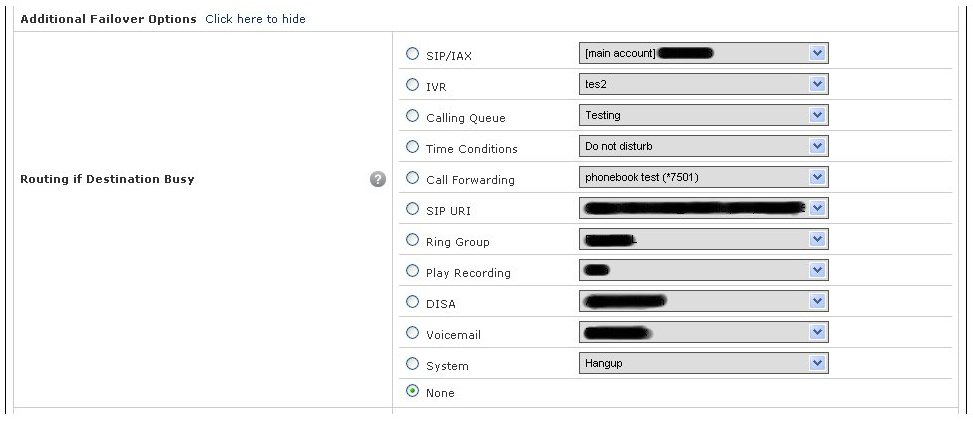
On the Manage DID(s) section, enter again to edit the DID number settings. Under Routing, you will find a link to enable your Failover options, click on the link to display them. You will find 3 different options to set:
- Routing if Destination Busy: As the name indicates, in the case your number is busy, this option will trigger sending your call to the specific destination. Example: A call forward to an external number.
- Routing if Destination Unreachable: In the case you are not registered, a network issue (customer side) or power outage, this option will trigger.
- Routing if Destination No Answer: Self explanatory, if the main destination does not answer the call (Time out expired) this option will trigger.

If issues are persisting
Lastly, you can verify and sign up to receive notification if VoIP.ms service is currently being affected by an outage at https://status.voip.ms/
